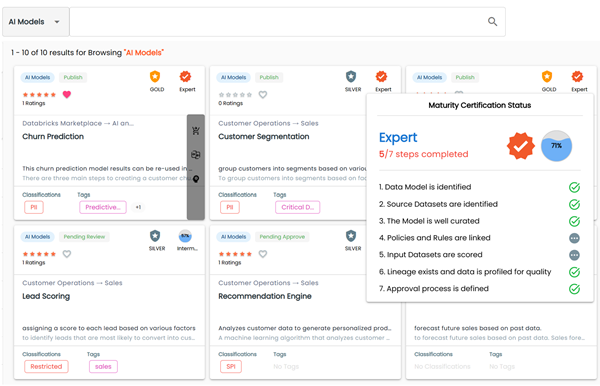
The Maturity Level Certification feature lets you configure up to seven optional validations within a workflow. These validations contribute to the asset’s overall certification score. The final score is based on the number of successfully completed validations and determines the asset’s Maturity Certification Status.
Validations
The seven validations used to calculate the maturity level certification score are displayed in the following image.
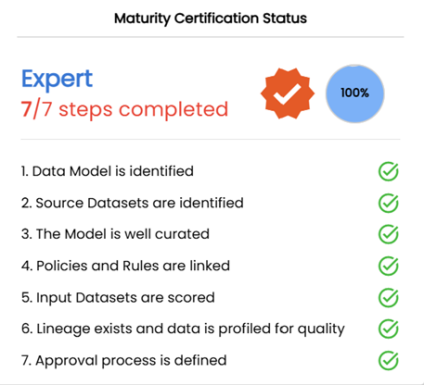
Maturity Certification Rating
The overall maturity certification rating is based on the number of validations that are enabled and validated by the system.
Overall Score (%) = (Number of checks validated by the system ÷ Number of validations enabled) × 100
Configuration Maturity Certification
You can configure Maturity Certification for business assets such as business terms, business rules, and business policies, and data marketplace assets such as datasets, AI models, and data products. You can switch on or switch off each validation through administrative settings.
This topic walks you through the steps of configuring maturity certification for a selected asset type. For example, AI Models.
To enable and configure maturity certification, follow these steps:
- On the Asset Details tab, click
 .
.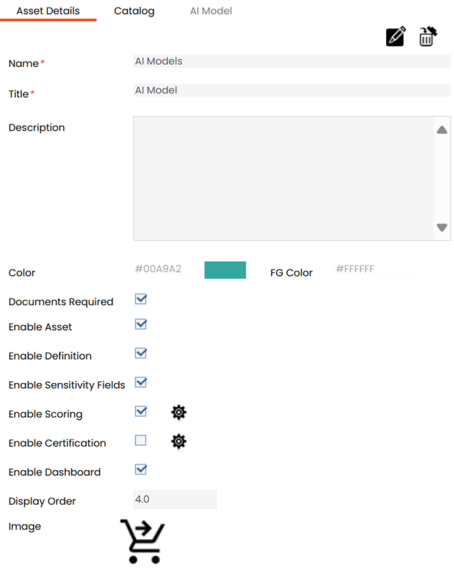
- Select the Enable Certification check box.
- To configure certification, click
 .
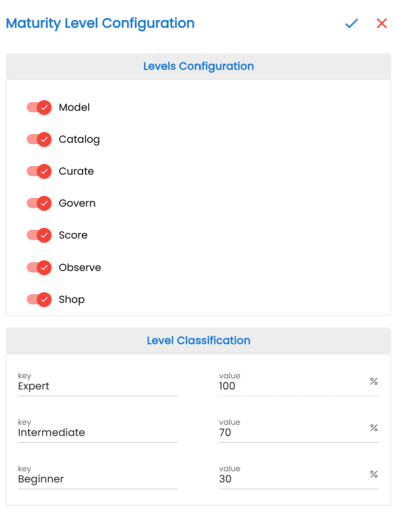
. - Switch the options on or off to select key criteria for calculating the maturity level of the selected asset type based on your requirements. Refer to the following table for field descriptions.
-
Beginner: Indicates the Beginner Level classification, representing the lowest value assets. For example, when the value is 30, the percentage score from 0 to 30 is configured as Beginner.
-
Intermediate: Indicates the Intermediate level classification, representing moderate value assets. For example, when the value is 70, the percentage score from 31 to 70 is configured as Intermediate.
-
Expert: Indicates the Expert level classification, representing the highest value assets. For example, when the value is 100, the percentage score from 71 to 100 is configured as Expert.
- Click
 .
. - Click
 .
.
The certification is enabled.
The Maturity Level Configuration pane appears.
|
Field Name |
Validation |
Description |
|---|---|---|
|
Model |
Data Model is identified. |
Validates whether a data model is associated with the asset. At least one erwin data model, with the database type set to erwin or erwin9 in Metadata Manager, must be associated with the asset. The system checks whether the asset is directly associated with a data model or indirectly associated through an intermediate asset—such as a data product or a dataset—that is linked to an erwin data model. |
|
Catalog |
Source datasets are identified. |
Validates whether a datasource is associated with the asset. At least one datasource or environment in Metadata Manager must be associated with the asset. The system checks whether the asset is directly associated with a datasource or an environment or indirectly associated through an intermediate asset—such as a data product or a dataset—that is linked to a datasource or an environment. |
|
Curate |
The model is well curated. |
Validates whether the asset has a definition, is classified or tagged, and has a governance stakeholder assigned. |
|
Govern |
Policies and Rules are linked. |
Validates whether business rules and business policies are associated with the asset. At least one business policy or business rule must be assigned to the asset. |
|
Score |
Input datasets are scored. |
Validates whether the associated datasets or data products have been scored for data quality. |
|
Observe |
Lineages exist and data is profiled for quality. |
Validates whether lineages exist, and data has been profiled for data quality. At least one lineage path must exist for the tables, columns, or environments that the AI model is connected to—either directly or through an intermediate asset such as a Dataset or Data Product. |
|
Shop |
Approval process is defined. |
Validates whether assets have passed through an approval workflow. A workflow process must be associated with the asset, and the asset must be published. |
|
Keys |
Specifies the percentage ranges for each classification level |
You can rename classification levels and modify values as needed.
Maturity Level is available in the Business Glossary Manager, Data Marketplace, and Discover Assets modules.
To discard your changes, click  .
.
For example, the Customer Segmentation AI model has all seven validations enabled, five validations completed, and a 71% score. This score translates to an Expert rating, based on how the level classifications are configured.
If you enable only five validations, the Maturity Certification Status list displays those five validations. A green check mark indicates completed validations, while incomplete ones remain without the check mark.